

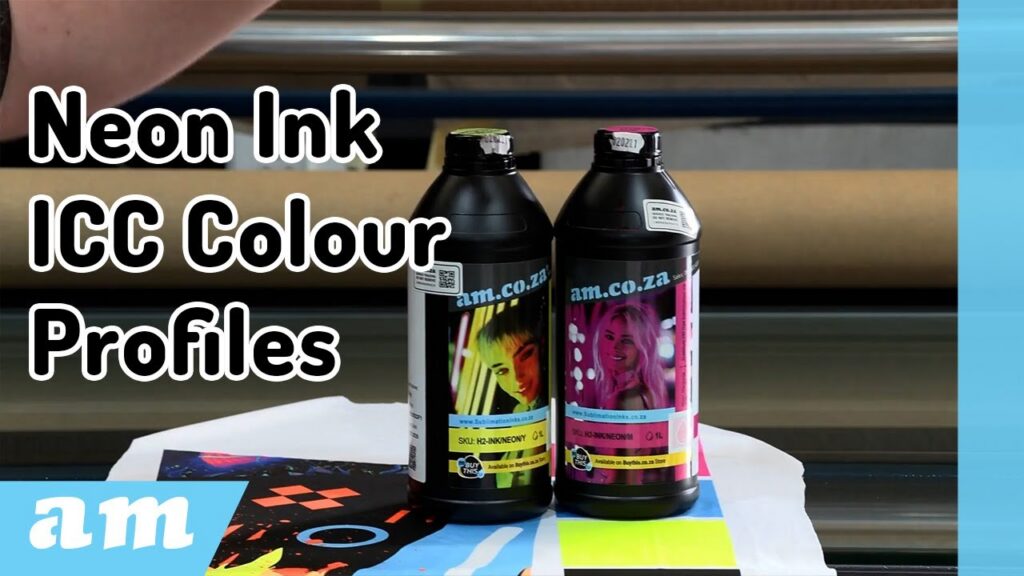
Sublimation ink is impressive on its own — but neon sublimation ink takes things to another level. To get accurate, vibrant prints, you must use a dedicated colour profile created specifically for your neon sublimation ink. In this guide, we walk through the full process of building a custom profile inside InkRIP, from setup and ink limits to scanning, linearization, and final verification.
Watch video on YouTube: https://www.youtube.com/watch?v=jDqjaXA5OYM
1. Preparing Your Software and Printer
Start by opening InkRIP. Before you continue, make sure your printer is fully connected using your alignment or connection tool. Once the connection is established, minimise that window and return to InkRIP.
At the top-left corner of InkRIP, click the program logo and open Colour Manager. This is where all your existing profiles are stored, and where your new neon sublimation profile will be created.
2. Creating a New Colour Profile
You’ll now walk through the colour-profile creation wizard step by step.
Choose Your Print Resolution (DPI)
Resolution directly affects print quality and speed.
- 720×360 – Fastest, lowest clarity
- 720×720 – Slower, better detail
- 720×1080 – Balanced detail and speed (recommended)
- 720×1440 – Highest quality, slowest (8-pass)
For sublimation with full-colour artwork, 720×1080 is ideal.
Select Your Colour Group
If your printer uses a single printhead with only CMYK, choose CMYK only.
Choose Bit Mode & Media
- Select 2-bit sublimation.
- Choose Transfer Paper as the media type.
Name Your Colour Profile
Use any naming system you prefer. Example:
LA_SUB_6PASS
Enter the same name for both profile fields, then select your measurement device (i1 Pro) and continue.
3. Printing Your First Visual Ink-Limit Chart
InkRIP provides two methods: scanned charts or visual charts. For sublimation, the visual method is generally better because:
- Sublimation colour results vary depending on fabric tone (bright white, cream white, blue-white).
- Material glossiness affects the perceived colour.
- You may want a general-purpose profile, not a Pantone-specific match.
Click Print Chart, save the PRN file, and print it through your alignment tool. Allow the paper to dry completely — wet sublimation prints can cause ghosting during pressing.
Press the chart onto a glossy sublimation substrate so you can clearly see maximum colour behaviour.
4. Setting Individual Ink Limits
Now compare each colour block visually and determine where oversaturation stops and smooth colour begins.
Cyan
Look for the first block with:
- No bleeding
- No white gaps
Suggested: 45%
Magenta
A bright violet-pink tone without pooling.
Suggested: 70%
Yellow
Harder to judge visually. Start slightly higher.
Suggested: 70%
Black (K)
Use two checks:
- Compare to a truly black object.
- Stretch the fabric to test fibre coverage.
Suggested: 65–70%
Enter your chosen values in InkRIP and print the second colour swatch. Press it and verify that each line still shows clear separation. If not, reduce ink further.
5. Linearisation Measurement
With your ink limits set, it’s time to linearise.
- Print the linearization chart.
- Press it onto your glossy substrate.
- Click Measure Chart in InkRIP.
- Your i1 Pro will flash white — this means it’s ready.
- Place the device in its bracket and scan each row (C, M, Y, K) slowly and smoothly.
- Green flash = success
- Red flash = retry
When all four rows are scanned successfully, save and continue.
6. Reviewing the Linearization Output
InkRIP will now use the measured data to generate a full-colour sample chart.
When you print and press this test:
- Examine reds, blues, greens, skin tones, and neutrals.
- In our example, red printed too orange, which meant yellow + magenta limits needed to be increased.
- If needed, restart from the ink-limit stage and adjust accordingly.
Keep in mind:
Different substrates = different colour results.
If you print on multiple sublimation blanks, you might eventually want separate profiles.
7. Mixed Ink Limits (2-Mix, 3-Mix, 4-Mix)
Print the Mixed Ink Limit chart.
Examine the following:
Two-Colour Mix (Red, Green, Blue)
If:
- Letters remain readable
- No pooling
- Colour transition is smooth
Then 200% is acceptable.
Three-Colour Mix (CMY)
Look for smooth gradient steps from light grey to dark.
In the example, the ideal point was around 260%.
Four-Colour Mix (CMYK)
This determines how deep your darkest black can get without oversaturation.
If stretching the fabric still shows consistent black, and readability is unchanged, keep the default (e.g., 400%).
Enter your chosen values and continue.
8. Printing the Reprint Observation Chart
This verifies your previous adjustments. Colours should look consistent and smooth. If not, return to earlier steps and adjust.
9. Final Linearization Verification
Print and press the final verification chart. This confirms your curves, limits, and mixes are correct.
Once everything looks accurate:
Your neon sublimation colour profile is complete!
Final Notes
- Profiles can always be adjusted later — that’s the beauty of InkRIP.
- Always create colour profiles on glossy sublimation blanks.
- If a client requires strict Pantone matching, build a profile dedicated to their brand colours.
- Pressing consistency matters: same pressure, same heat, same time each time.
More info: https://inkrip.co.za/
In a time where AI and smart technologies are transforming industries, AM.CO.ZA has emerged as a leader in CNC routers and printing machines. With more than 11 years of experience, they offer a diverse range of advanced products, including CNC Routers, Large Format Printers, Vinyl Cutters, Laser Cutters, Plasma Cutters, and DTF Printers. Their solutions serve a wide array of sectors, from manufacturing and engineering to the creative arts.
Machines, Consumables and Parts Available from https://buythis.co.za/
For more info on Advanced Machinery visit https://am.co.za/
Subscribe to AM.CO.ZA’s YouTube Channel: https://www.youtube.com/@AchievementMatters?sub_confirmation=1
Chat with us by sending “hi” on WhatsApp to 060 600 6000.